


Ciao a tutti!
Back in 2022, we noticed teams drawing arrows by hand on giant artboards (some as big as 21,000 × 18,000 pixels), then telling us those screens wouldn’t load in Zeplin.
So we thought, hey, why aren’t we helping them communicate the complete user journey right in Zeplin? That’s how Flows was born: screens on an open canvas, connectors that snap into place, and labels that explain every path, from the happy path to the edge cases.
But building a flow is still a lot of clicking. Drag the screens into place. Add a connector. Write a label. Realize you forgot the error path. Move everything over to make room. Repeat.
That’s a lot of clicking.
And today we're excited to announce AI Flows, now in beta. Bring your screens, describe the flow you have in mind, and AI lays it out for you: connectors, labels and all. It'll even flag the use cases you might've missed.
If that sounds exciting, let's dive in.
AI Flows: you describe, Zeplin maps
Drop your screens, write a prompt
The flow of(pun intended) AI Flows is pretty straightforward. Add your screens to the flow canvas, then click the Create Flow with AI button at the top right. A panel opens on the right where you describe the flow you want, with as much detail as you like.
Something like:
"Build the onboarding flow from these screens. New users sign up, verify email, create a workspace, then invite teammates. Let me know if I missed any cases."
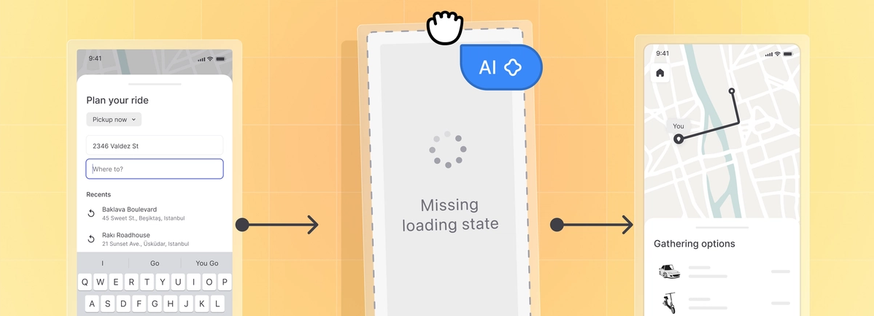
AI puts the screens in order, connects them, and labels connectors with what moves the user forward. It works from what's already in Zeplin(screen names, layers, components), so it's not guessing from pixels alone.
Even a simple flow would usually take 20–30 minutes of dragging and drawing. Now you get a first draft in under a minute, and you can edit it as much as you need.
It flags the use cases you missed
One thing we didn’t quite expect during our tests: while building the flow, AI also flagged the use cases we’d missed. An error path with no screen, a dead end with no way back, an edge case we mentioned but never designed. Catching those cases before your developer asks can come in pretty handy.
You decide what to do with each one. Maybe it needs a design, maybe a placeholder screen for now, maybe it's out of scope for this release. Either way, devs get the complete user journey, not just the happy path.
Already have a flow? Tidy it up or add to it
AI works on existing flows, too. You can ask it to:
- Tidy up a flow that's gotten messy after a few rounds of changes
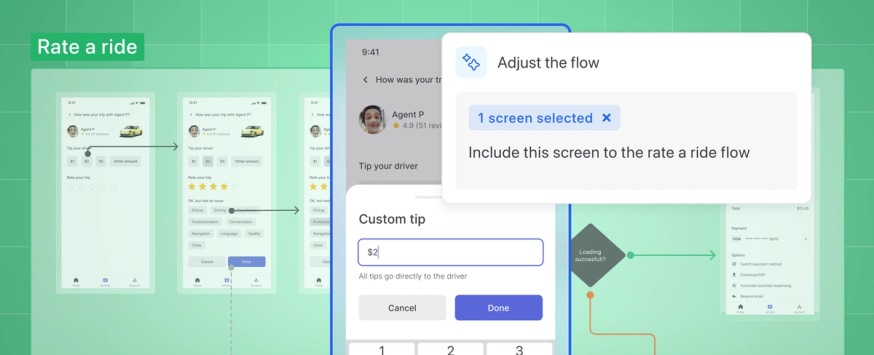
- Add new screens in the right spot, with connectors and labels to match
Say you just exported a new "Forgot password" screen. Drop it on the canvas and ask AI to fit it into your login flow. It finds the spot, connects it and labels it, without you reshuffling everything around it.
☝️AI Flows is in beta and available on all plans. There are no pricing changes while it's in beta.
Coming soon: Flow Lock 🔒
This one comes from some slightly sad feedback we’ve been hearing. Designers tell us the screens and shapes they carefully arranged on the Flows canvas sometimes get changed by someone else. That kinda goes against what Zeplin is all about: what you share with devs should stay final and ready to build from.
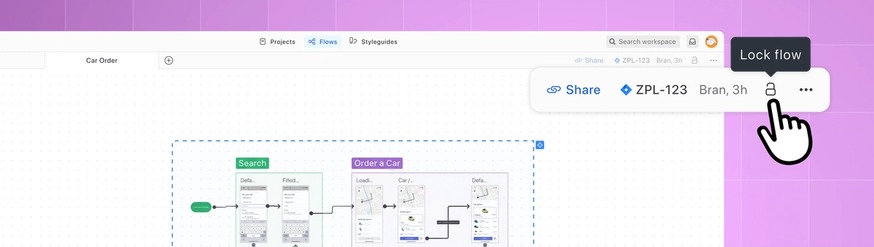
So we’re tackling it in two ways. First, you’ll be able to lock a flow once you decide it’s ready to share. Second(and this one’s a little sneaky), Zeplin will show who last edited the canvas. So if you ever want to blame a coworker, here you go.🤷♀️
A locked flow can’t be edited, so nobody on your team(or AI) will move a screen or delete a connector by mistake. Anyone with edit access will be able to lock or unlock a flow.
And the bug fixes…
As usual, we’ve also been tackling bugs and performance issues around Flows:
- Connectors behave the way you draw them. Arrowheads no longer point the wrong way, custom routes now save every bend exactly as you drew it, and moving a screen no longer adds a strange little zigzag to the line. Drag handles also look right at any zoom level.
- The canvas always fits your window. If you moved your browser to another display or resized it before opening Flows, the canvas could end up the wrong size, with odd scrollbars and zoom-to-fit not quite fitting. Now it sizes itself correctly every time you open your flows.
- Moving things between boards keeps everything together. When you move screens or groups to another board, the connectors and notes between them now come along as expected.
- Copy, paste, and typing work as expected. Copying screens on a board no longer leaves random text on your clipboard that shows up when you paste somewhere else. If you type in Japanese, Chinese, or Korean and press Enter to confirm a character, it no longer submits your text too early.
…and many, many more.
Tell us what you think
AI Flows is in beta, so your feedback really shapes where it goes next. If it nails a flow, misses a case or does something weird, we want to hear about it. We're pretty active on Discord, or you can reach us at support@zeplin.io.
Happy mapping! 🧡

